Installation
On first launch Sortail walks you through a short, sequential onboarding to grant the permissions it needs. Each step is its own dialog — there's nothing happening silently in the background. Once the flow finishes, the panel appears above Mail and you're ready to file.
Mail Folder Access
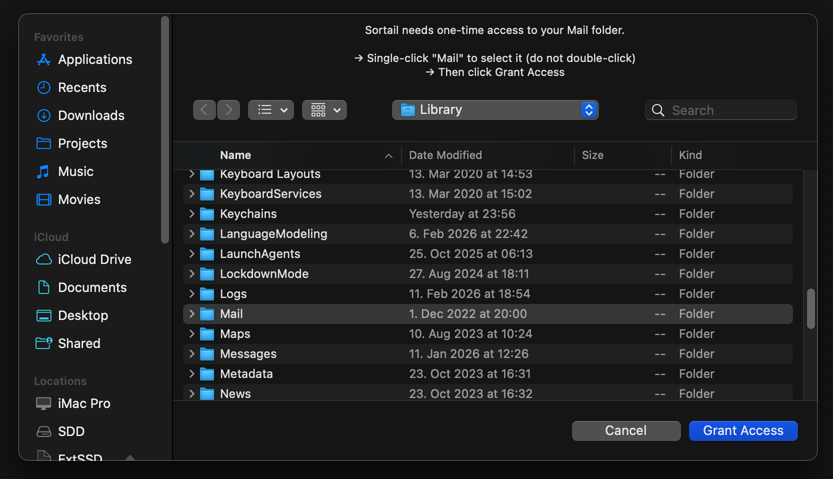
First step. Sortail opens an Open Folder panel pointing at ~/Library/Mail and asks you to confirm. This grants one-time, sandbox-scoped read access to Mail's local Envelope Index — used to count messages before bulk actions and to load the mailbox list instantly. Without it, Sortail can't show how many messages will be affected and the mailbox list may be empty. You can re-grant later from Settings → Permissions → Mail Folder Access if you ever need to.
Automation
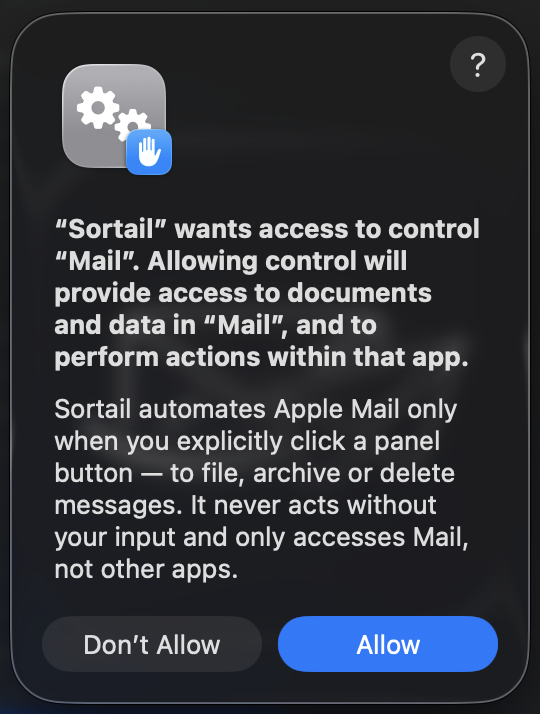
Second step. Sortail asks whether to enable Automation control over Apple Mail — this is what lets it move/delete/archive messages on your behalf. Approving this once is what causes Sortail to appear under System Settings → Privacy & Security → Automation with Apple Mail listed underneath. If you decline, Move, Delete, Archive, and Create Mailbox won't work until Automation is granted; you can re-grant any time by toggling Sortail back on in System Settings.
Launch at Login
Sortail registers itself as a Login Item automatically on first launch so it starts with macOS. You can toggle this any time from the Sortail menu (right-click the menu-bar icon → Launch at Login) or in System Settings → General → Login Items.
Notifications
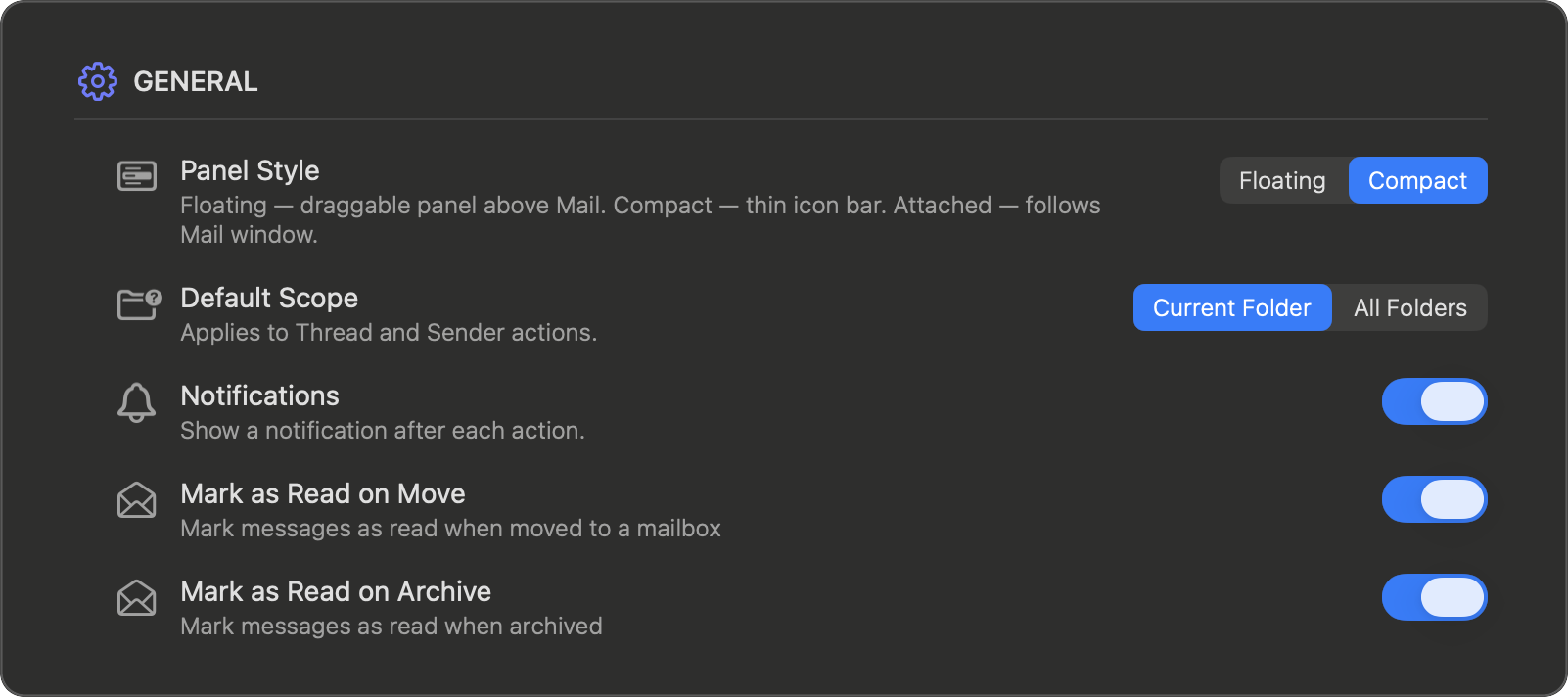
Notifications are off by default. To enable post-action banners, open Settings → General and switch the Notifications toggle ON — macOS will ask for permission immediately. You can turn them off again any time from the same toggle.
Panel
Compact Panel

Floating Panel
Move to Mailbox
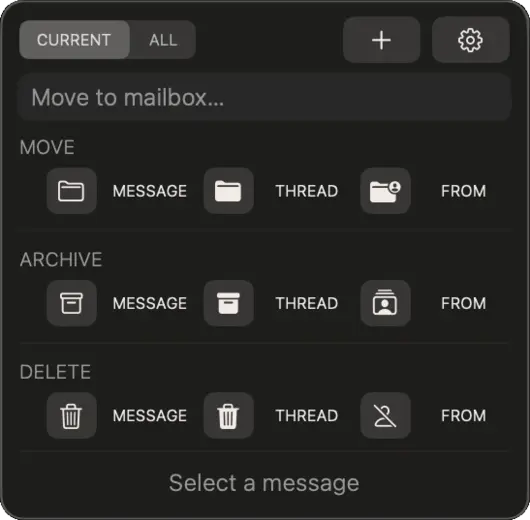
Select a destination folder before using any Move action. Click the field — the dropdown opens with all folders across all accounts. Type a few letters to filter instantly. If you click a Move button with no folder selected, the dropdown opens automatically. Smart Suggestions — based on your filing history — appear in the dropdown for senders you have filed before. Pro
Scope
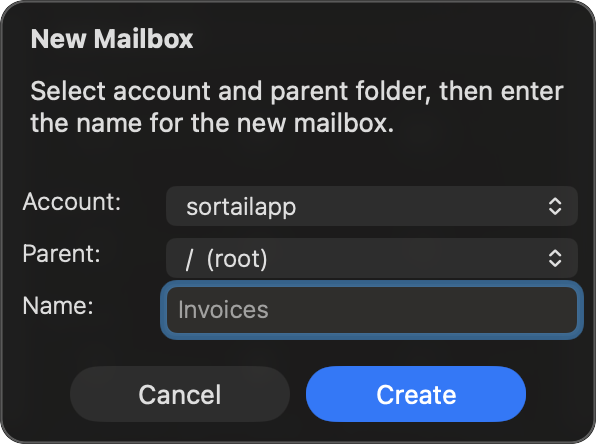
Sets the default scope for Thread and Sender actions. All Folders — operates across your entire Mail library. Current Folder — limits the action to the open mailbox.
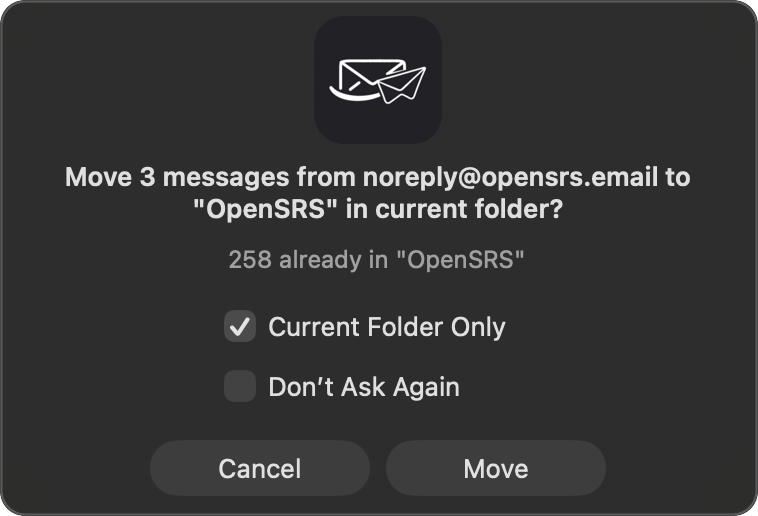
This is the default — you can always override it individually in the confirmation dialog that appears before each Thread or Sender action runs.
Move



Delete



Archive



Other

Settings
General




Confirmations
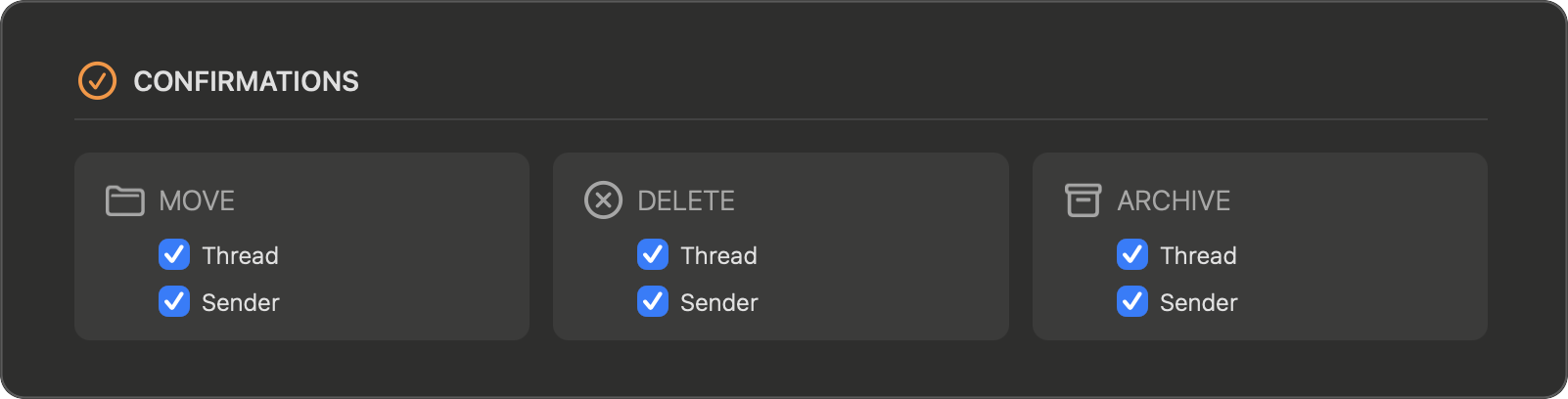
Control which bulk actions ask for confirmation before running.

Language


Permissions
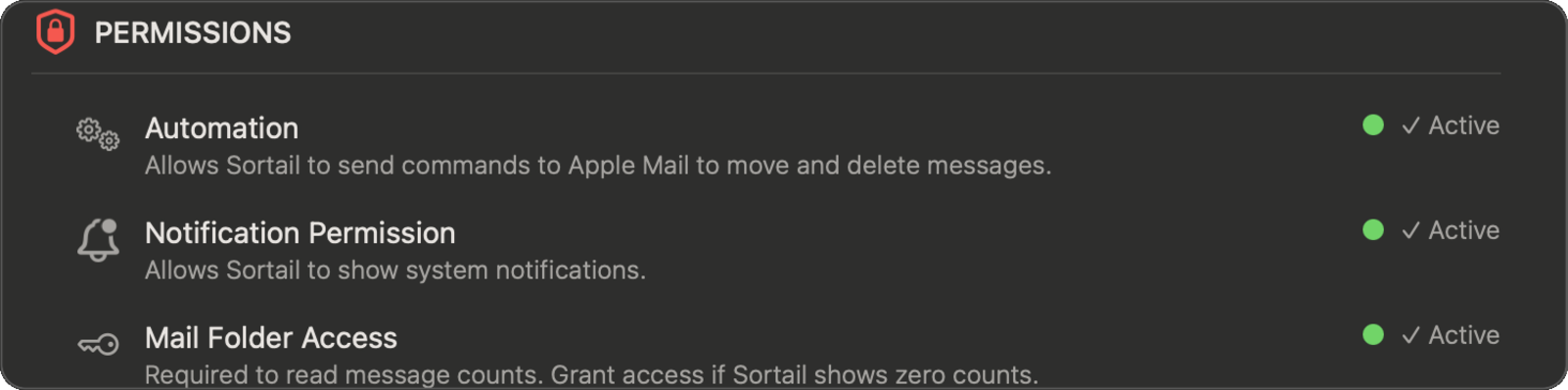
A green dot next to each item means the permission is active.



macOS quirk: the system Automation permission dialog only appears once. If you accidentally clicked "Don't Allow", macOS will never show that dialog again — so in those cases Sortail opens System Settings → Privacy & Security → Automation, where you can flip the Sortail → Mail switch on by hand. This isn't a bug; it's TCC's protective behaviour.
Advanced
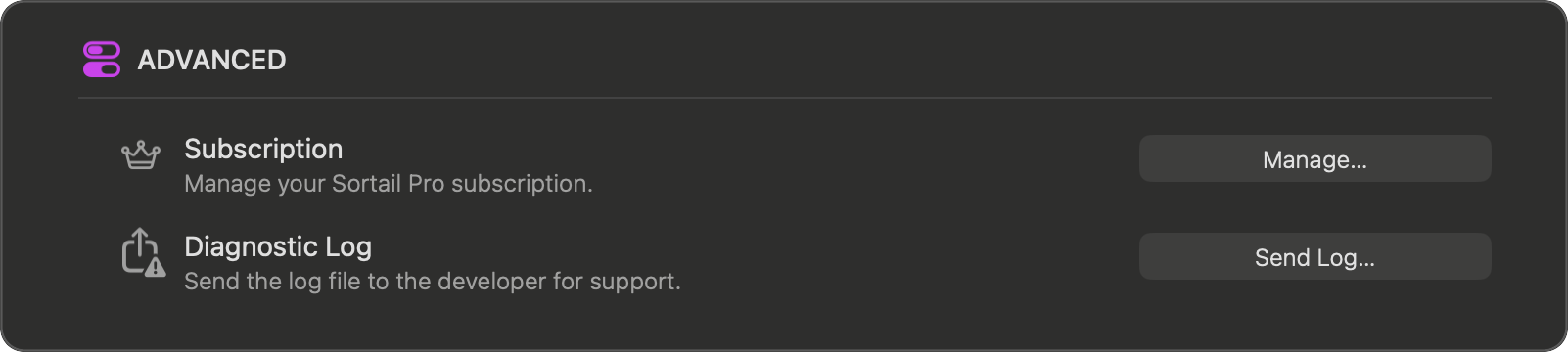


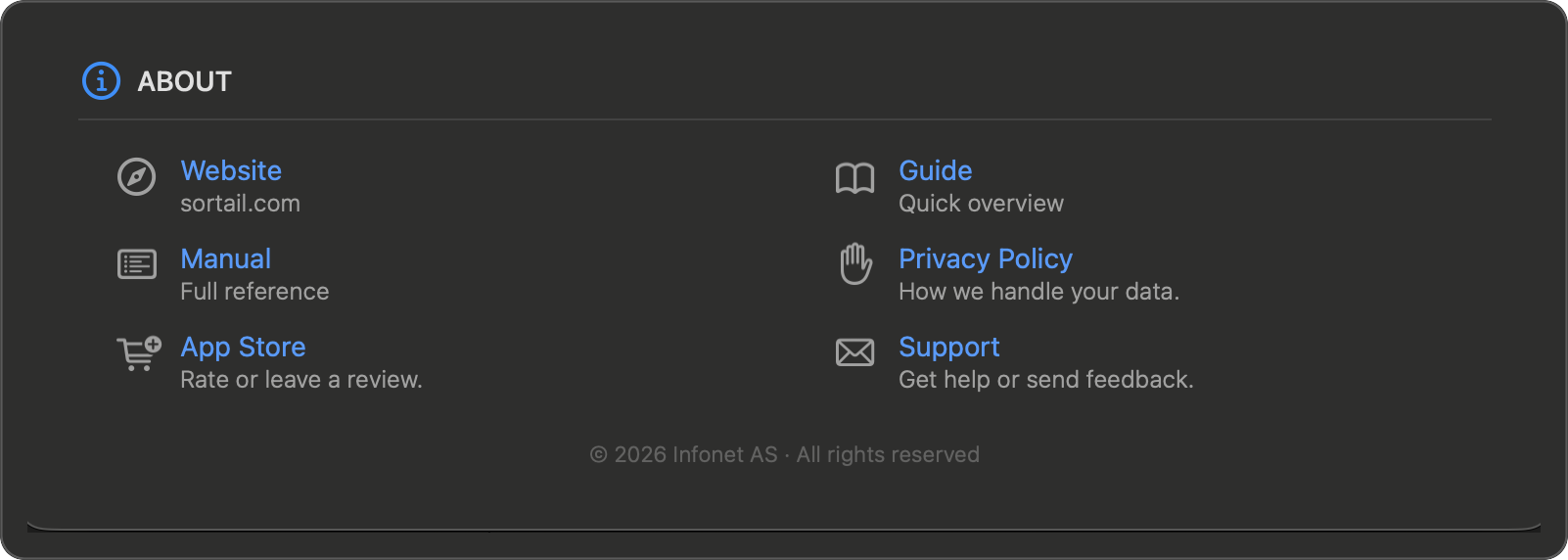
~/Library/Application Support/Sortail/sortail.log.About






Menu
Left click — if Mail is not running, launches it; if Mail is in the background, brings it to the front; if Mail is already frontmost, toggles the panel. Right click — opens the menu below.




Gmail integration
If you have Gmail accounts in Apple Mail, Sortail can optionally connect to them through the Gmail API to perform archive, move, and delete operations that match Gmail's native behavior. This section explains why the integration exists, what it does, and how to connect or disconnect.
Why it exists
Gmail organizes mail with labels rather than folders — archiving a message means removing its INBOX label. Sortail acts on Apple Mail through AppleScript, which can move messages between mailboxes but can't perform Gmail's label-based archive. For a Gmail account, a plain move wouldn't match how Gmail itself archives.
So for connected Gmail accounts, Sortail talks to the Gmail API directly: Archive removes the INBOX label, exactly the way Gmail's web and mobile apps do. The same applies to Move (changing labels) and Delete (moving to Trash).
What Sortail does
When you trigger an action on a connected Gmail account, Sortail uses the Gmail API to: search for messages from a sender, list message IDs that match your filter, and modify labels (add or remove INBOX, Trash, or your custom labels). All requests go directly from your Mac to Google's servers — Sortail has no servers of its own.
What Sortail does NOT access
Sortail does not read message bodies, attachments, drafts, contacts, or settings. Header data is read only as needed to identify a message for an action you initiated — sender, subject, message ID. Sortail does not download or cache the content of your messages.
What Sortail does NOT do with the data
— No transfer to third parties (other than Google itself).
— No storage on Sortail or Infonet AS infrastructure (we operate no cloud services that handle your mail).
— No use for advertising, retargeting, or interest-based ads.
— No use for training, developing, or improving any AI or machine-learning models.
— No human access except (a) with your explicit permission, (b) for security purposes such as investigating abuse, (c) to comply with applicable law, or (d) for internal operations only when the data has been aggregated and de-identified.
For the formal disclosure see the Gmail API access section of the Privacy Policy.
OAuth scope
Sortail requests a single scope: https://www.googleapis.com/auth/gmail.modify. This is the minimum scope that allows the label-change operations described above. Sortail does not request gmail.readonly, gmail.compose, gmail.send, or any other Gmail scope.
Connecting an account
Sortail does not connect Gmail upfront. Connection happens on demand: the first time you trigger an action that benefits from the Gmail API on a Gmail account (for example, Move Sender or Archive Sender), Sortail opens a Gmail Connection panel listing your Gmail accounts in Apple Mail and their connection state.
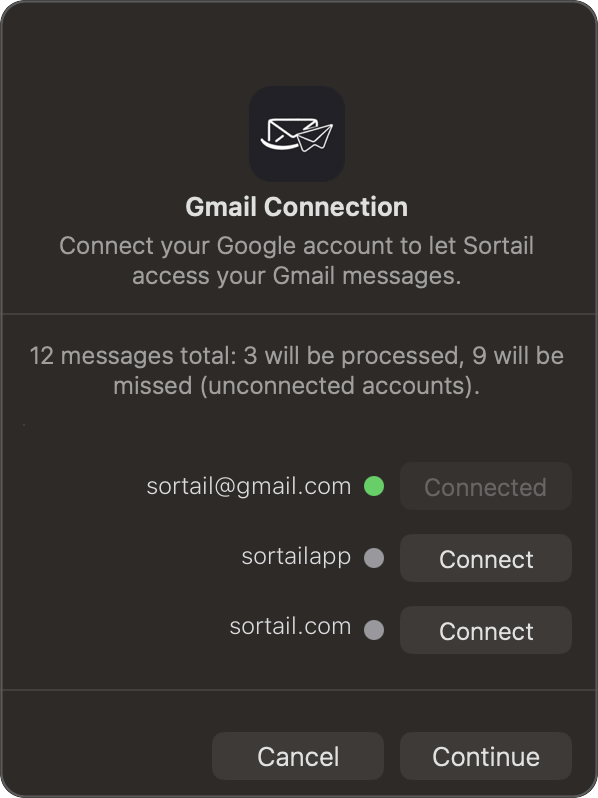
In the panel, click Connect on the account you want to authorize. Your default browser opens a Google sign-in page. Sign in with that Gmail address, review the permissions Sortail is requesting, and click Allow. The browser tab closes automatically and the panel updates to show the account as connected. Click Continue to proceed with the original action.
Connecting is entirely optional. You can click Continue without connecting an account — Sortail will simply skip the Gmail-API path for that account and process the rest. Click Cancel instead if you want to abort the entire action and not change anything.
Disconnecting
To revoke Sortail's Gmail API access, go to myaccount.google.com/permissions, find Sortail in the list of connected apps, and click Remove access.
The next time Sortail makes a Gmail API call for that account, it detects the revocation, automatically clears the OAuth tokens from the macOS Keychain, and marks the account as unconnected. The account will then reappear in the Gmail Connection panel on the next applicable action, where you can reconnect or skip.
When Sortail sees a revocation in the middle of an action (for example, you just unlinked the app in Google's Security settings), it doesn't crash with a confusing error: it disconnects the account on its side automatically, opens the Gmail Connection panel with that account selected, and offers to reconnect. After re-running OAuth you can immediately retry the same action — state is fully restored.
Where credentials are stored
OAuth access and refresh tokens are stored locally in the macOS Keychain on your device, encrypted by macOS. They are never transmitted to Sortail or Infonet AS infrastructure — every Gmail API request goes directly from your Mac to Google.
Logs and support
Sortail keeps a local diagnostic log — it lives at ~/Library/Application Support/Sortail/sortail.log and rotates automatically (capped at 1 MB). If something goes wrong, open Settings → Advanced and click Send Log — Sortail will compose an email in your default mail client with the current log attached; all you need to do is hit Send. The log doesn't include message bodies or sender addresses; only technical events (launches, granted permissions, AppleScript timeouts, Gmail API errors).
Troubleshooting
Sortail reads counts from Mail's local Envelope Index, which may lag behind the IMAP server — especially after a large sync, account migration, or while Mail is still downloading messages in the background. This is normal.
Wait for Mail to finish syncing (the progress bar in the Mail sidebar disappears). If the discrepancy persists, rebuild the index: quit Mail, then hold Option while reopening it — the index rebuilds automatically on launch.
A similar lag can happen after Gmail account actions: Sortail sends the operation to the Gmail API immediately, while Mail catches up via IMAP sync, usually within a few seconds. If at the moment of the action Mail's count doesn't yet match what Sortail just reported, just wait — Mail will catch up.
Click the Sortail icon in the menu bar — it hides and shows the panel with a single click. The icon stays in the menu bar even when the panel is hidden, so you can always bring it back from there.
Usually it's one of two causes:
- No message is selected in Mail — pick a message in the list and the buttons activate automatically.
- Sortail is missing a permission — a ⚠ button appears in the corner of the panel. Click it and follow the prompts to grant the access it needs.
This is expected. Sortail's panel is designed to stay out of the way — it shows only when Mail is frontmost and hides automatically when you switch to any other app. Switch back to Mail and the panel reappears.
Your subscription is tied to your Apple ID, not the app installation. Open the upgrade screen from the Sortail menu and tap Restore Purchase — the App Store will verify your Apple ID and unlock Pro instantly. No need to subscribe again.
Open Settings → Permissions and click Grant Access next to Mail Folder Access. This gives Sortail one-time access to read the mailbox list from your Mail library.
You can do the same straight from the panel: if access to the Mail folder has been lost, a ⚠ button appears in the corner — click it, and Sortail will show the reconnect dialog.
POP3 accounts store messages locally. When Sortail moves a message out of your Inbox, the move only affects the local copy. If your account is set to keep messages on the server, Mail may re-download them on the next check.
To fix this, open Mail → Settings → Accounts → [your POP account] → Account Settings and set "Remove copy from server" to "When moved from Inbox". This tells Mail to delete the message from the POP server whenever it is moved out of your Inbox, preventing duplicates.
This is a POP3 protocol limitation and applies to all mail clients, not just Sortail. IMAP accounts do not have this issue.
This means Sortail couldn't reach the App Store to fetch the subscription product. Check your internet connection and that the App Store is signed in (System Settings → Apple ID). Close the upgrade screen and reopen it — Sortail tries again on each open.
If you're already a subscriber and Pro features are locked, click Restore Purchase instead — that runs through your Apple ID without needing the product fetch.
Without the Gmail integration connected, Sortail archives a Gmail message through Apple Mail's AppleScript interface, which can only move the message between mailboxes — not remove Gmail's INBOX label, so the message stays in your Gmail inbox. Connect the affected Gmail account in the Gmail Connection panel and Sortail will use the Gmail API to remove the INBOX label directly, the way archiving in Gmail's web app does.
The icon appears when Sortail is missing a permission needed for the actions you're about to use. There are two possible cases:
- No access to the Mail folder (
~/Library/Mail) — clicking it makes Sortail offer to reconnect access. - Automation permission for Mail isn't granted — clicking it opens System Settings → Privacy & Security → Automation.
Just click the icon — Sortail will tell you exactly what to enable. Once permissions are in order, the button hides itself.
While Mail isn't running, the floating panel stays hidden — it only appears when Mail is active. The Sortail icon remains in the menu bar: click it to launch Mail. Once Mail comes up, the panel returns automatically and you can carry on.
Mail drops focus when a message is moved via AppleScript, and macOS doesn't let a third-party app put it back — that's a system limitation, not a Sortail bug. Click the next message manually, or use the ↑/↓ arrow keys in Mail.
That's a normal protective response. Sortail sees an invalid_grant error or "Token expired or revoked" from Google and automatically disconnects the account on its side — otherwise every following action would fail with a confusing error.
Reasons: Google revoked the token (for example, you removed Sortail from the apps list in your Google Account security settings), long inactivity, or security policy changes. Sometimes the token disappears from the macOS keychain because of a system reinstall.
What to do: Sortail will open the Gmail Connection panel with that account selected — click Connect and run through OAuth again. After reconnecting, retry the same action — state recovers fully.
POP3 accounts have no server-side equivalent of Archive — that's a protocol limitation. So that the Archive button works for POP3 too, Sortail on first launch maps each POP3 account to your single local "On My Mac" account and, if there's no Archive folder there, creates one with a localised name.
It's a one-time automatic setup. Messages archived through Sortail from a POP3 account land in "On My Mac" → Archive — they aren't lost. If you have several local accounts, or you want to redirect the archive elsewhere, pick the folder manually on the first archive and Sortail will remember the choice.
The basic single-message actions — Move, Delete, Archive — work for free with no limits.
A Pro subscription is required for:
- thread actions: Move Thread, Delete Thread, Archive Thread;
- sender actions: Move Sender, Delete Sender, Archive Sender;
- Smart Suggestions — Sortail remembers which mailbox you usually move messages from each sender to, and suggests it.
A free trial is available on first launch; after it ends, Pro is purchased through the App Store. Details and pricing are on the Pro screen inside the app.
This is normal — your IMAP server didn't flag any folder as the archive "by the standard". Apple Mail and Sortail rely on the RFC 6154 \Archive flag, which the server returns in response to the IMAP LIST command, to identify the archive folder. On Synology MailPlus, on self-hosted Dovecot, and on some corporate IMAP servers that flag is simply not set, even though the folder itself ("Archive", "Archived", "Saved", and so on) does exist on the server.
In that case, on the first archive Sortail shows a picker with all folders in the account — pick the one you consider your archive, and Sortail will remember the choice for that account (nothing is sent anywhere; it's stored locally only). The dialog won't appear again afterwards.
If you'd like to fix it at the server level: on Synology, add the block mailbox "Archive" { auto = subscribe; special_use = \Archive } to your Dovecot config (over SSH; the config survives restarts but is overwritten by MailPlus package updates). All other clients will then recognise the folder automatically.